
IN THIS GUIDE
- Archive a Class
- Change the Name of a Class
- Join Another Teacher's ClassJoin Another Teacher's Class
- Remove a Student from a Class
Archive a Class
If you created a class by mistake or simply want to remove a class, you can archive it and move it into "Past Classes." Here is how:
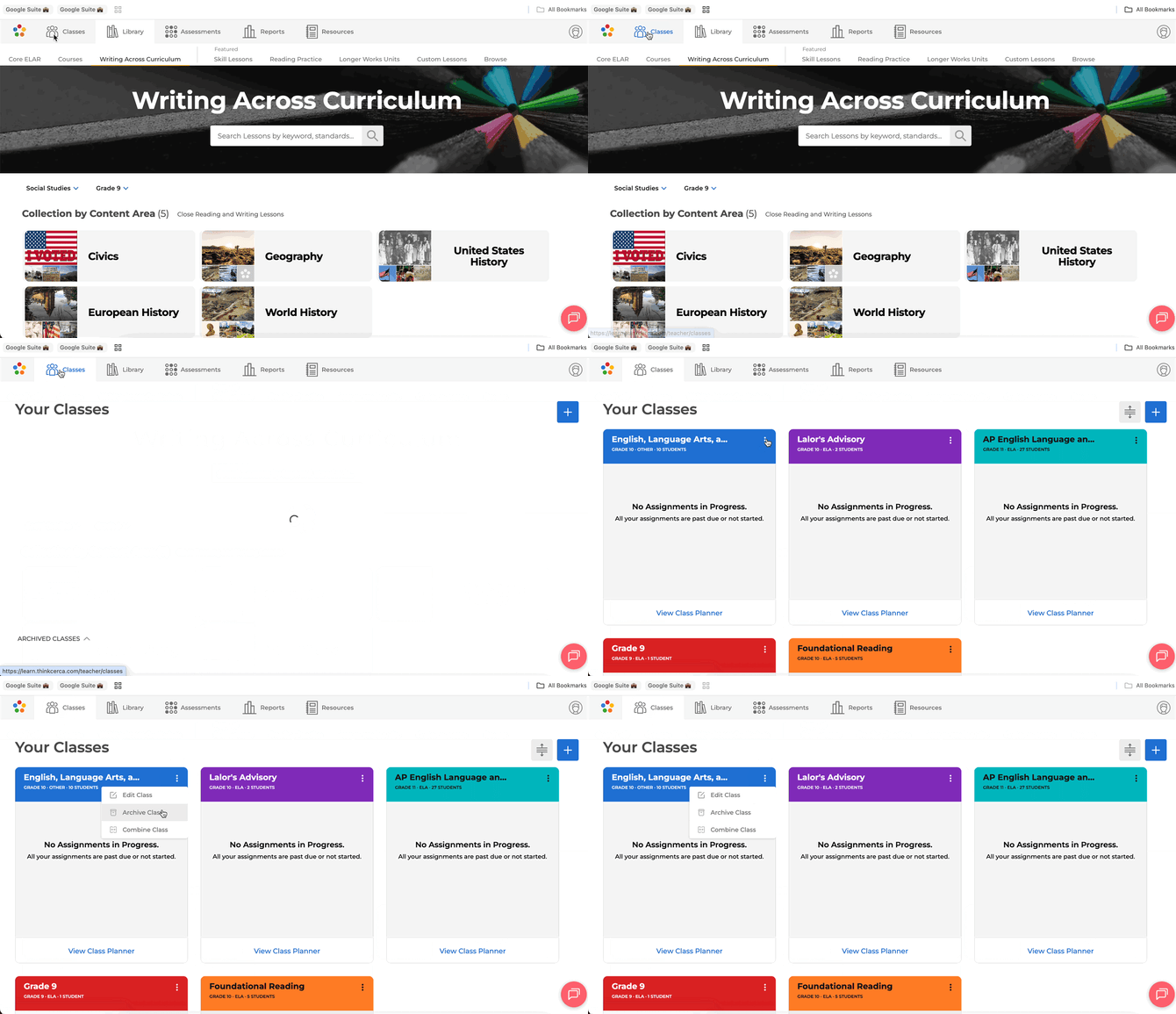
- Navigate to the Classes Page.
- Hover over your class and select the dots on the class tile.
- Select the "Archive Class" button at the bottom and the class will be archived and moved to the bottom of your classes Dashboard.
Video | Screenshot Walkthrough | Print one pager
Change the Name of a Class
To change the name of a class, follow these steps:
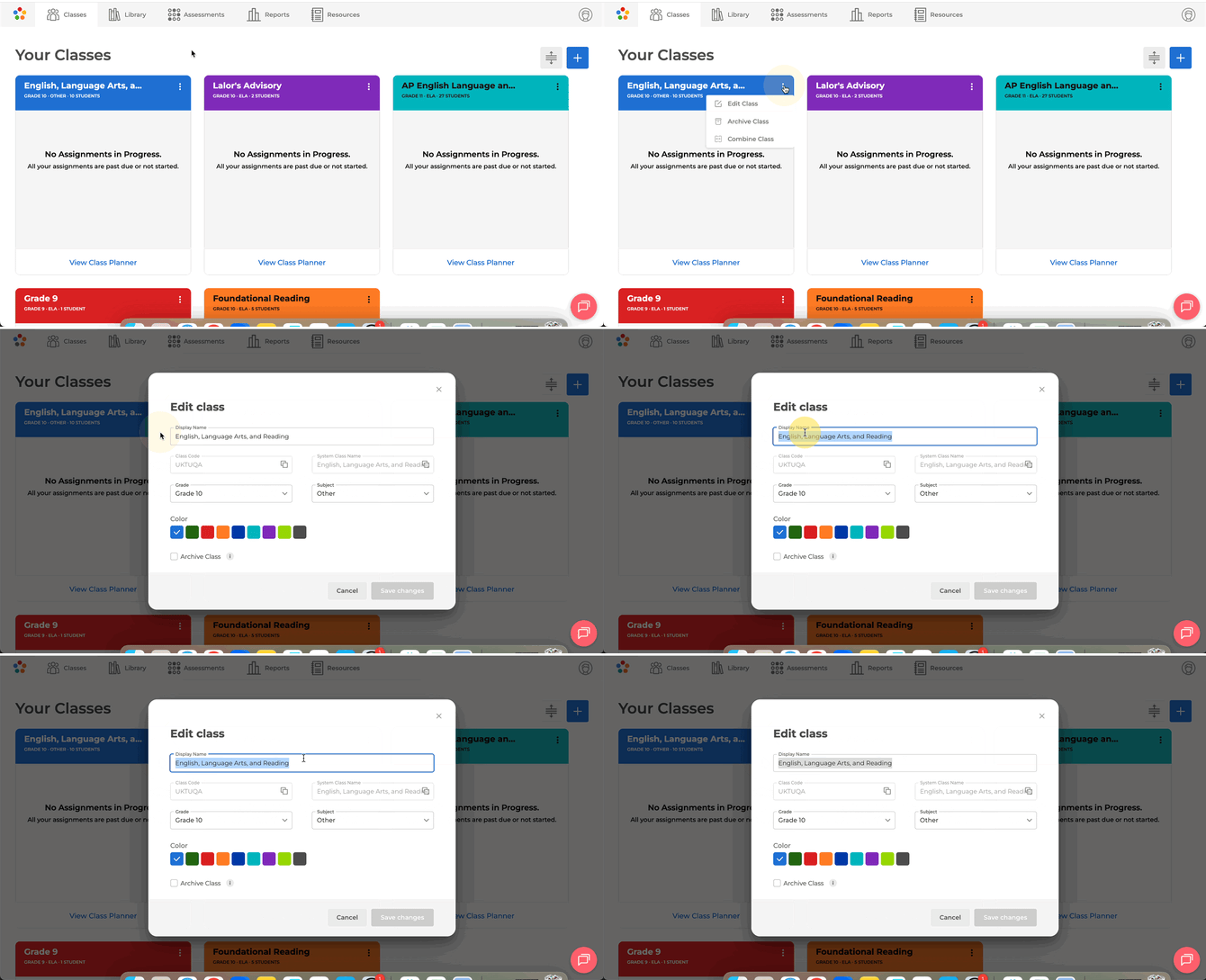
- Select “Classes” in the top menu.
- You will see a list of all your classes. Scroll to the class name you would like to change.
- Select the dots on the top-right or the class tile.
- Select “Edit class” from the dropdown. From here, you can change the class name, the grade and subject associated with the class.
- Select “Save Changes” to save the new class name.
Join Another Teacher's Class as a Co-Teacher
Teachers have the option to join another teacher’s class. To add yourself to a colleague’s class, follow these steps:
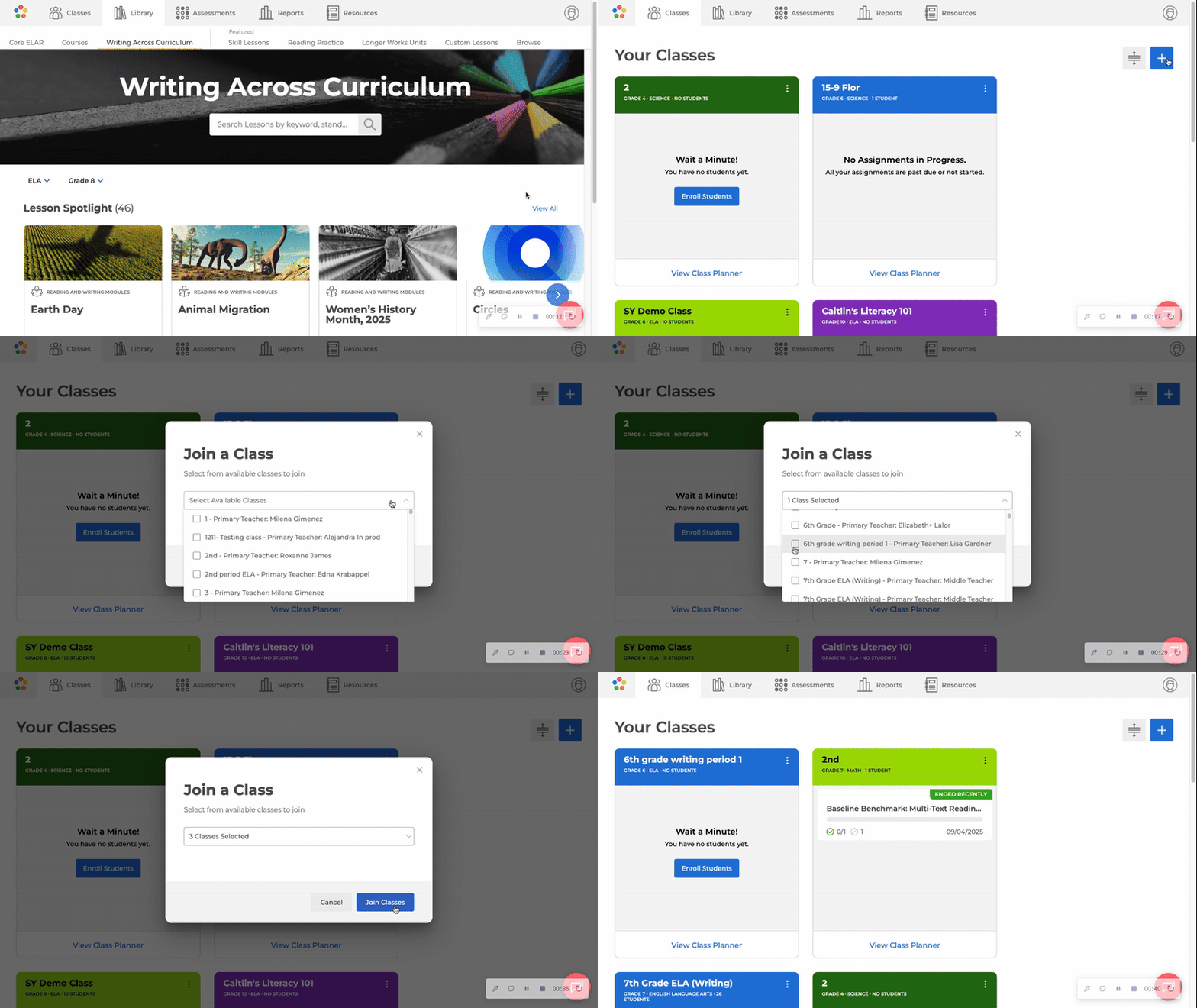
- Click on "Classes" in the top navigation.
- Select the “+ Join a Class” button on the upper right side of the screen.
- A pop-up window will open. Within this window, you will be able to select available classes within your organization.
- Once you’ve made your selection, click the “Join Classes” button
- Review and you are ready to go
Remove a Student from a Class
To remove a student from a class, follow these steps:
- Verify whether your district uses automatic rostering with ThinkCERCA (through a service like ClassLink, PowerSchool, Infinite Campus, or Skyward).
- If your district uses automatic rostering, contact your administrator and request to remove a student from your class in the School Information System (SIS). If your district does not use automatic rostering, proceed straight to step 3.
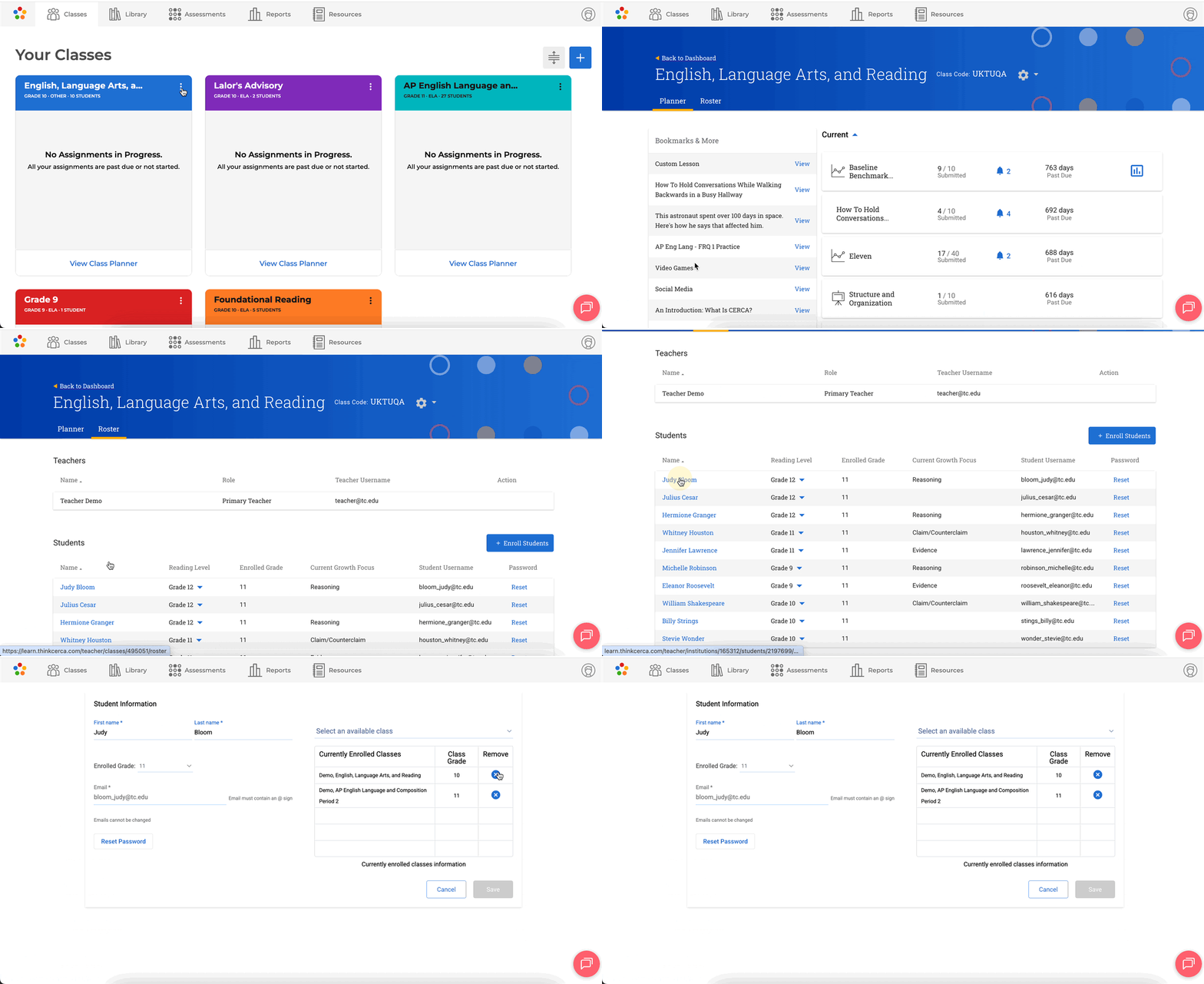
- From the Classes page in ThinkCERCA, select the class in which the student is enrolled.
- Toggle to the “Roster” tab next to “Planner.”
- Select the student you wish to withdraw.
- A student information card will appear with a list of currently enrolled classes.
- Select the “X” next to the class you wish to remove the student from.
- Select “Save” and the student will be removed from the class.